
Volta
Volta command reference.
These are the actions Volta understands. Open the palette, type a device, plug-in, command, chain, favorite, or indexed sample, then press Enter.
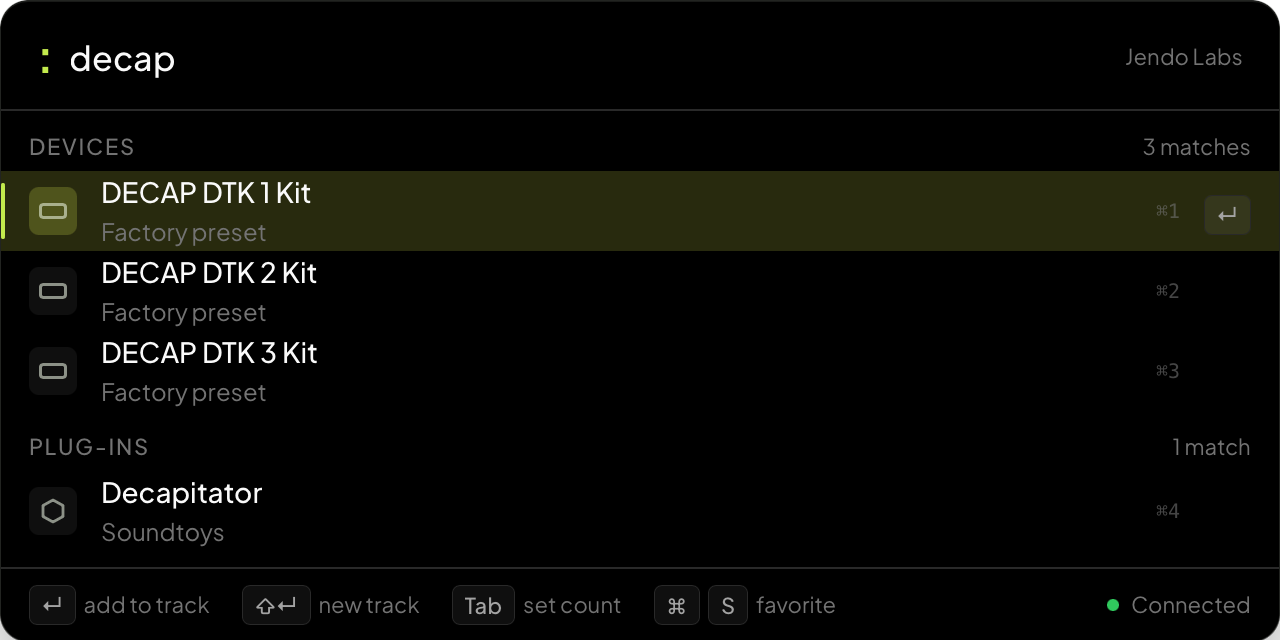
Load devices
Find any device or plug-in.
Search Ableton devices, Max for Live devices, third-party plug-ins, and saved User Library items without opening the browser.
Search samples
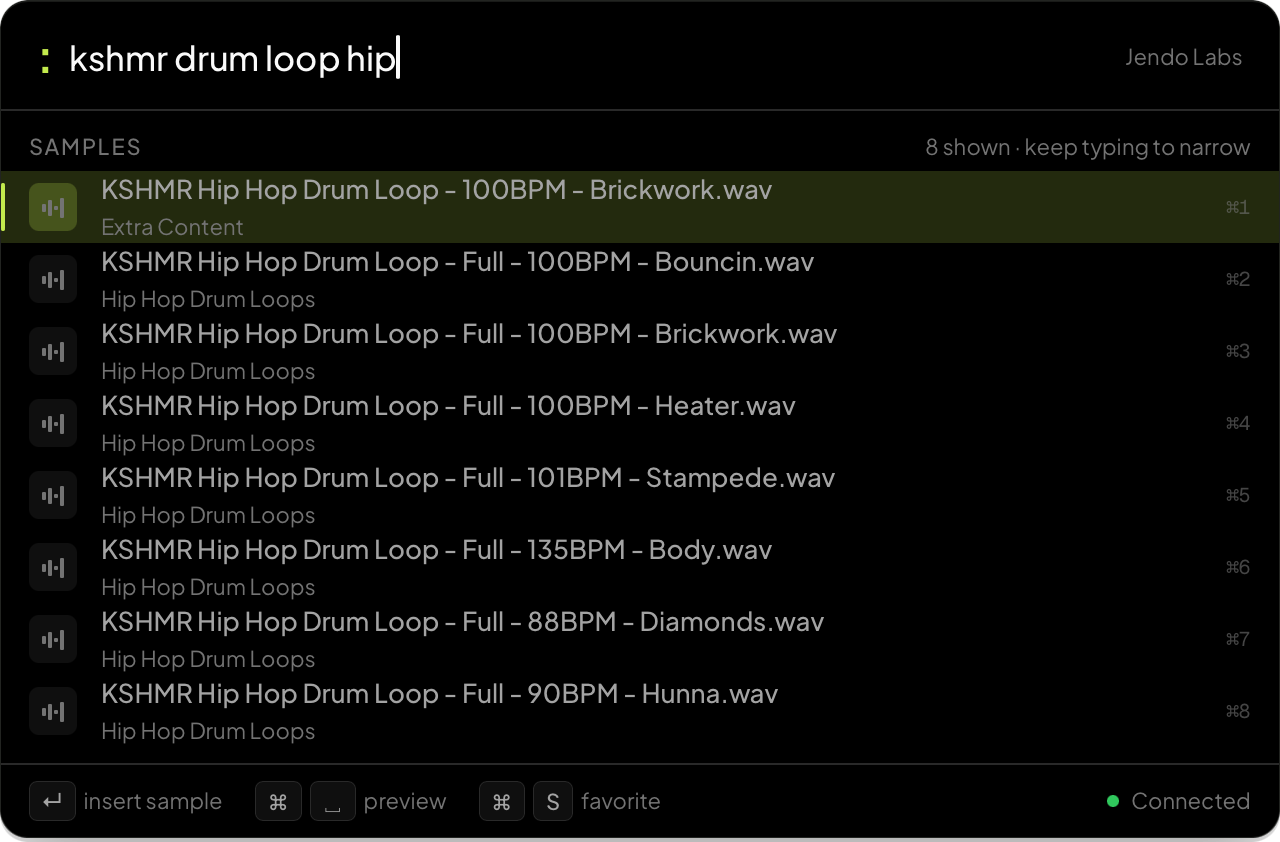
Search your indexed Ableton sample libraries.
Point Volta at the libraries and sample folders you already use in Ableton Live. After indexing, search and preview any sample. Press Enter to insert it.
Run actions
Skip the menus.
Target a track by name, clean up clips, or jump around the session. All from typed commands.
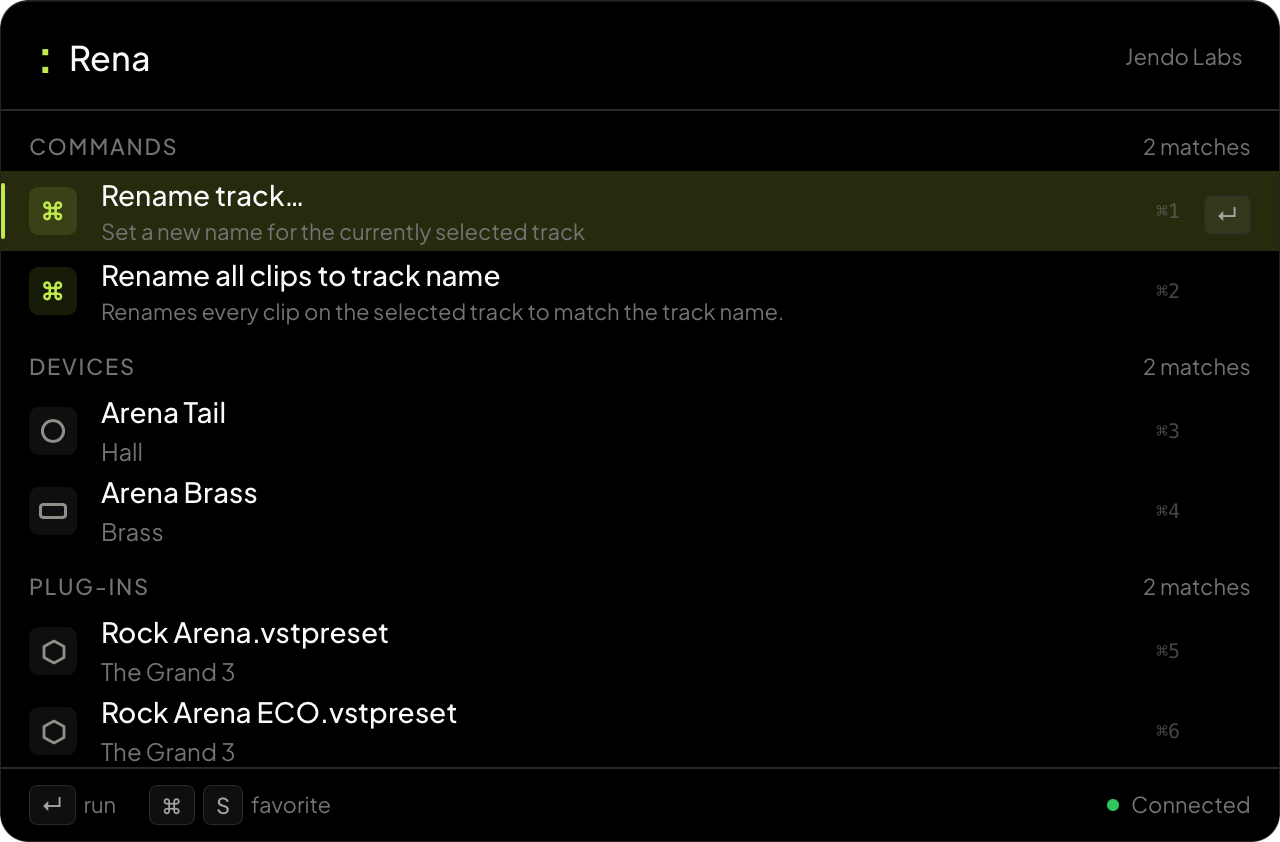
- bpm 128 Set tempo to 128 · ⏎
- mute <track> Toggle mute on any matching track
- rename clips Rename clips to the selected track
- arm <track> Arm any matching track
- new midi track Create a MIDI track
- clip 8 bars Create an 8-bar MIDI clip
Build chains
Chain steps into repeatable moves.
Chain devices and actions into one move. Use semicolons when you know the sequence, or add steps with Cmd/Ctrl+Enter as you build. Save any chain as a favorite for later.
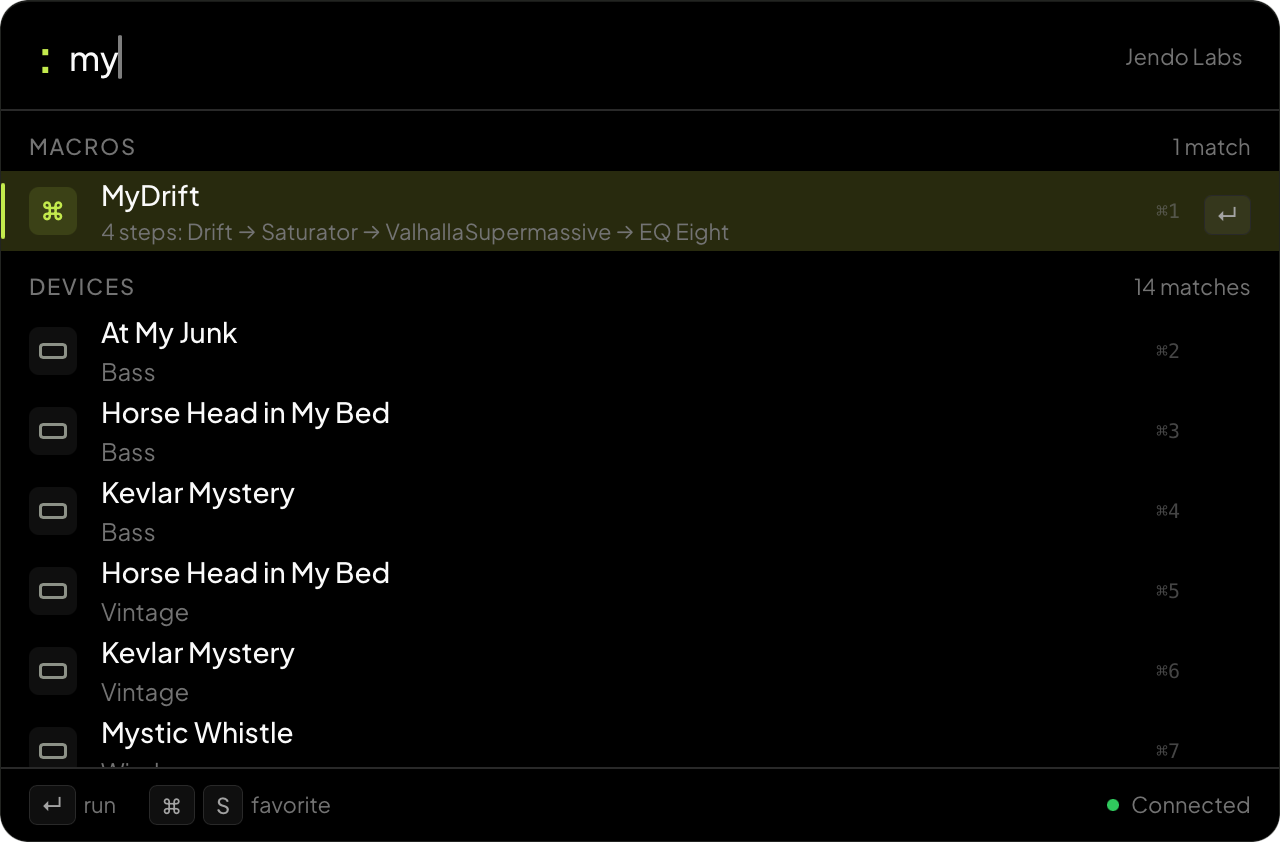
- new midi track; wavetable New MIDI track with Wavetable
- new midi track; Serum 2; Echo New MIDI track with Serum 2 and Echo
- new audio track; compressor New audio track with Compressor
Save favorites
Save anything for later.
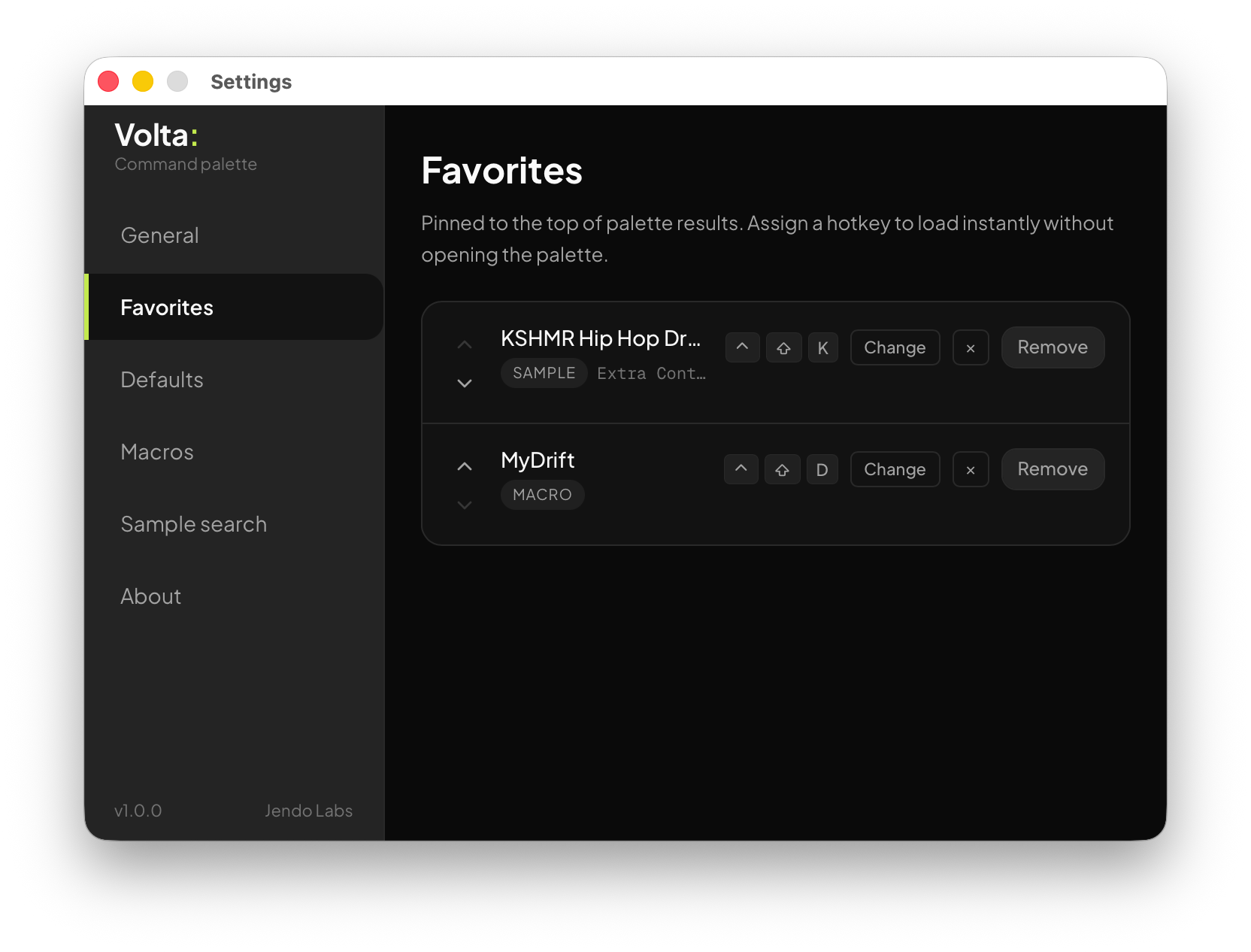
Press Cmd/Ctrl+S on any device, command, sample, or chain to save it. Find it from the palette or trigger it with a hotkey ctrl+shift+[key]
Options
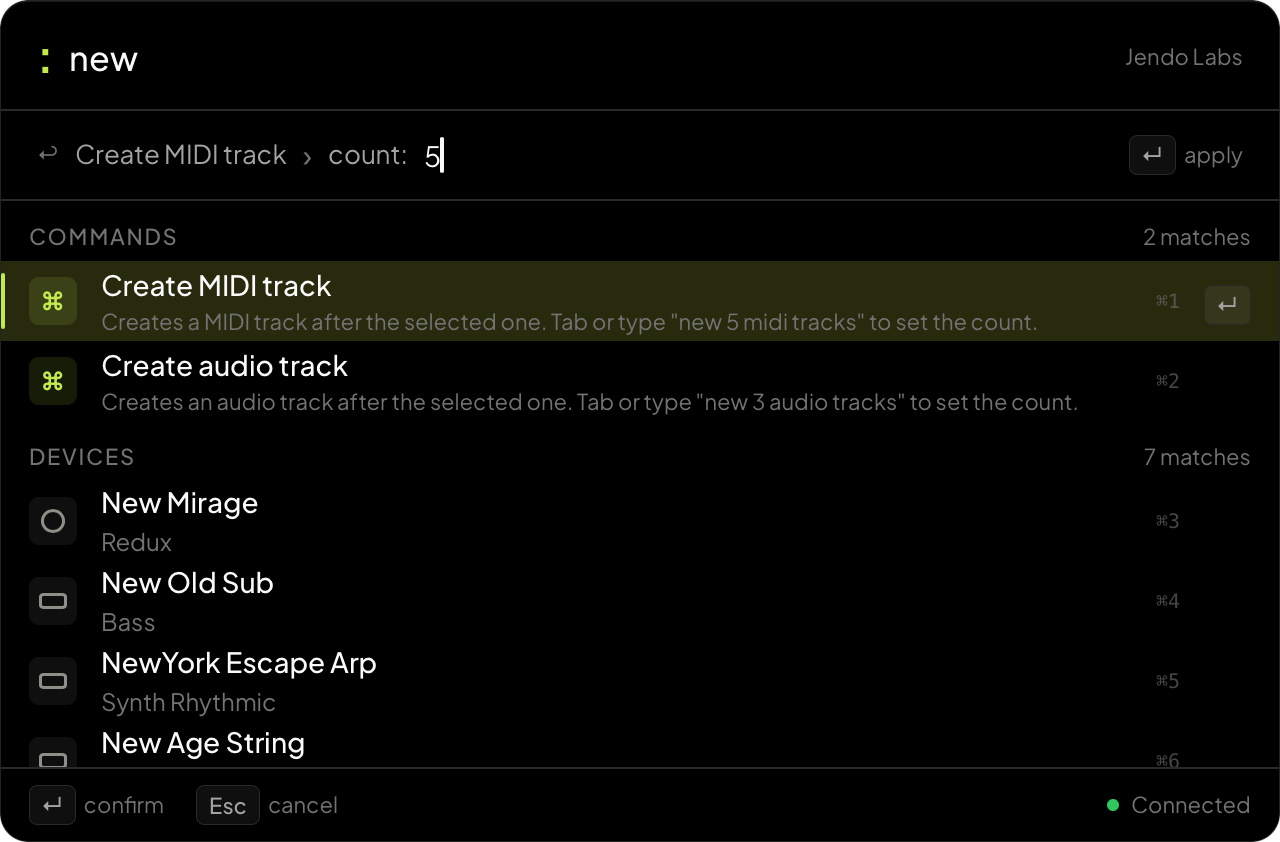
Create multiple instances of devices, midi tracks or audio tracks
Some commands have options which can be triggered with the tab key
- bpm tab to set the desired bpm of the track
- clip Create a new midi clip of x length
- device/effect Ableton built-in devices
- plugins Hit tab and specify how many instances you want